
Buying Guide — Keyboards
Best Keyboard for Two Computers
A work laptop and a personal machine on one desk usually means two keyboards, or one keyboard endlessly re-paired. All four keyboards we've reviewed end that: each pairs with up to three devices and hops between them with Easy-Switch keys. Because switching itself is a tie, this guide is decided by three checks a spec headline hides — the receiver standard each board actually uses, the battery model you live with when the board is switched all day, and the board itself, since the same size, layout and feel have to suit you on both machines.
Affiliate disclosure: Home Office Stack is a participant in the Amazon Services LLC Associates Program. As an Amazon Associate, we earn from qualifying purchases made through links on this page — at no extra cost to you. Picks are research-based, grounded in manufacturer specs and published owner feedback; we don't accept sponsored placements.
Three checks decide a keyboard for two computers
First check: the receiver standard decides whether it can pair at all. Every board here offers Bluetooth, and on your own machine that settles it. A work laptop is a different country: it may forbid Bluetooth pairing, arrive with its ports and radios managed, or simply be a machine you are not allowed to configure. Then the small USB receiver in the box is the connection — and receivers are not one standard. Two of these boards include a Logi Bolt receiver, Logitech's newer standard. One includes a Logitech Unifying receiver, the older standard. Bolt and Unifying are not compatible with each other, so a receiver already sitting in your drawer only counts if it matches the board in front of you. And one board here includes no receiver at all, which moves it from an afterthought to the first thing to check.
Second check: the battery model, on a board that never rests. A two-computer keyboard is switched all day and lit for much of it, so how it is powered stops being a footnote. Three of these boards recharge over USB-C, with ratings that swing widely depending on the backlight: days with the light on, months with it off. They differ in the details that matter mid-week — how long a lit charge lasts, and what the cable can do while it is plugged in. The fourth board takes the opposite route entirely: replaceable AAA batteries rated in years rather than days, and no backlight to spend them on. Neither model is automatically better; the right one is the one whose charging rhythm, or absence of one, matches how the desk is actually used.
Third check: the board itself, because you live with it twice. Switching solves the connection and nothing else. The keyboard you pick is the keyboard both computers get — its size on the desk, its layout under your hands, the feel of every keystroke, on the work machine in the morning and the personal machine at night. The four boards here are genuinely different objects: a full-size board with a numpad, a split ergonomic board with a built-in wrist rest, a compact board with no numpad that pulls the mouse in close, and a full-size mechanical board bought for feel. A two-computer guide that stopped at connectivity would rank them equal; judged as boards, they are four different answers for four different desks. One more shared limit before the picks: every board here is labelled for both Windows and Mac where it counts, so a mixed pair of machines is the normal case, not an exception.
The keyboards we've reviewed, compared by two-computer checks
| Logitech MX Keys S Wireless Keyboard | The two-computer default — full-size, backlit, receiver included | 16.94 × 5.18 × 0.81 in · 810 g · full-size, 104 keys with numpad, straight low profile | Bluetooth LE or included Logi Bolt receiver, up to 3 devices with Easy-Switch · Bolt NOT compatible with Unifying · rechargeable USB-C, up to 10 days lit or 5 months unlit, works while charging |
| Logitech Ergo K860 Wireless Ergonomic Keyboard | The ergonomic pick — the split board, on the older receiver standard | 17.95 × 9.17 × 1.89 in incl. rest · 2.56 lb · split curved full-size with numpad and integrated pillowed wrist rest | Bluetooth LE or included Logitech Unifying receiver, up to 3 devices with Easy-Switch · NO backlight · 2 × AAA batteries, rated up to 24 months — nothing to charge |
| Logitech MX Keys Mini Wireless Keyboard | The compact pick — with the receiver caveat stated first | 11.65 × 5.19 × 0.82 in · 506 g · compact, NO numpad, straight low profile | Bluetooth ONLY in the box — no USB receiver included · works with a Logi Bolt receiver bought separately, NOT compatible with Unifying · rechargeable USB-C, up to 10 days lit or 5 months unlit, works while charging |
| Logitech MX Mechanical Wireless Keyboard | The feel pick — mechanical switches on the newer receiver standard | 17.08 × 5.18 × 1.02 in · 828 g · full-size with numpad, straight low profile | Bluetooth LE or included Logi Bolt receiver, up to 3 devices with Easy-Switch · Bolt NOT compatible with Unifying · rechargeable USB-C, up to 15 days lit or 10 months unlit, cable charges only |
Specs above are as recorded in each product's full review on this site. Read the table's honest shape: the switching row is identical four times — up to three devices, Easy-Switch keys — and everything that separates these boards sits in the receiver, the battery and the frame around the keys.
The two-computer default: Logitech MX Keys S
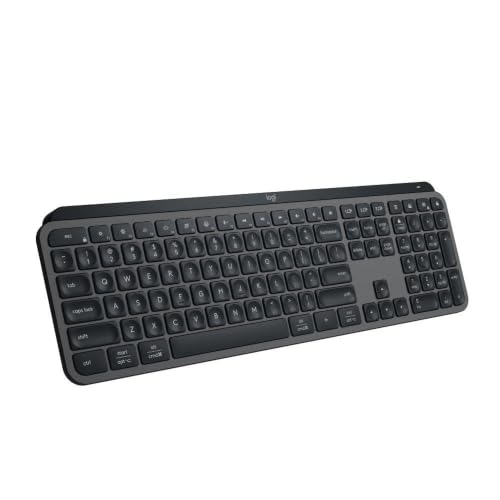
The MX Keys S is the default because it clears all three checks without asking for a compromise in return. On the receiver check it is the straightforward board: Bluetooth Low Energy for machines that allow pairing, and the included Logi Bolt receiver for the one that does not — a work laptop that refuses Bluetooth still gets a connection out of the box. It pairs with up to three devices and moves between them on Easy-Switch keys, and its key legends are labelled for both Windows and Mac, so a mixed pair — a Windows work laptop beside a personal Mac, or the reverse — reads correctly under your fingers on both channels.
On the battery check it is the middle path, honestly stated. The rechargeable battery is rated at up to 10 days with the smart white backlight on, or up to five months with it off, and the board works while it charges over USB-C — a flat board at 9 a.m. is a cable for an hour, not a dead desk. The backlight itself earns its keep on a two-machine desk: it wakes by proximity as your hands approach, so the board you switched to in a dim room is lit before the first keystroke lands on the wrong machine's document.
On the board check it is the familiar one: a full-size 104-key layout with a numpad, 16.94 by 5.18 inches and 810 grams, with spherically dished scissor keys that are quiet in owner feedback — the board a household hears least while it serves two computers. Nothing about it is specialised, and for a desk that simply needs one good keyboard across two machines, that is the point.
Fit check: buy it when both machines can take Bluetooth or the Bolt receiver and a full-size straight board suits both desks' worth of work. Our full review records the backlight, battery and owner feedback behind this section in full.
The ergonomic pick: Logitech Ergo K860

If the reason for one keyboard across two computers is that your wrists have chosen a shape and you want that shape on both machines, the Ergo K860 is the pick — and it comes with the receiver check running the other way. It connects by Bluetooth Low Energy or the included Logitech Unifying receiver: the older standard, not Bolt. That is not a defect, but it is a fact to match against your desk. A Unifying receiver you already own pairs here; a Bolt receiver does not. A workplace handing out Bolt receivers points you back to the two Bolt boards in this guide; a workplace with Unifying in its drawers makes this the easiest ergonomic pairing of the four.
Its battery check is the simplest in the guide, because there is no charging to schedule. Two AAA batteries are rated at up to 24 months, and with no backlight there is nothing draining them between switches — the board that hops between a work laptop all week and a personal machine at weekends asks for a fresh pair of batteries roughly every couple of years and nothing in between. For a board whose whole job is to disappear into a routine, that absence of a charging rhythm is a genuine feature.
The board itself is the commitment: a split, curved full-size layout with a numpad, an integrated pillowed wrist rest that does not come off, palm lift at 0, -4 and -7 degrees, at 17.95 by 9.17 inches and 2.56 pounds. Its quiet scissor keys suit both machines, and its layout and function keys are labelled for Windows and Mac. What it asks in return is desk space on the one desk both computers share, and room light after dark, since there is no backlight.
Fit check: buy it when wrist geometry is the first decision and the receiver in your world is Unifying — it answers both, provided the largest footprint here fits the shared desk. Our full review records the wrist-rest and owner feedback behind this section in full.
The compact pick, with its caveat stated first: Logitech MX Keys Mini

The caveat first, because on a two-computer desk it can be the whole decision: the MX Keys Mini is Bluetooth only in the box — no USB receiver is included. It works with a Logi Bolt receiver bought separately, it is not compatible with Unifying receivers, and its USB-C cable charges only, with no wired typing behind it. So the Mini's three-device Easy-Switch story is complete on machines that accept Bluetooth pairing, and incomplete as shipped on a locked-down work laptop with no pairing allowed. A reader in that second situation should price the separate receiver into the decision, or take one of the included-receiver boards above.
Where both machines do pair over Bluetooth, the Mini is the board a shared desk feels best. At 11.65 by 5.19 inches and 506 grams, with no numpad, it pulls the mouse in close on the desk both computers share — the layout change you notice at hour six, on whichever machine is active. Its dished scissor keys are quiet, its smart backlight matches the MX Keys S's behaviour, and its rechargeable battery carries the same rating: up to 10 days with the backlight on, up to five months off, working while it charges. Its key legends, like the others here, serve both Windows and Mac.
One feature in its file belongs in a two-computer guide specifically: our catalog records Flow cross-computer control with a Flow-enabled Logitech mouse in Logi Options+, for readers whose switching extends to the pointer as well as the keys. The keyboard alone still switches typing the same way as the other three; Flow is the mouse-side companion, named here so a reader building a matched pair knows the Mini is the compact board that supports it.
Fit check: buy it when both computers accept Bluetooth — or the separate Bolt receiver is already in the plan — and desk width or mouse reach is the problem being solved. Our full review covers the receiver gap and the Flow pairing behind this section in full.
The feel pick: Logitech MX Mechanical
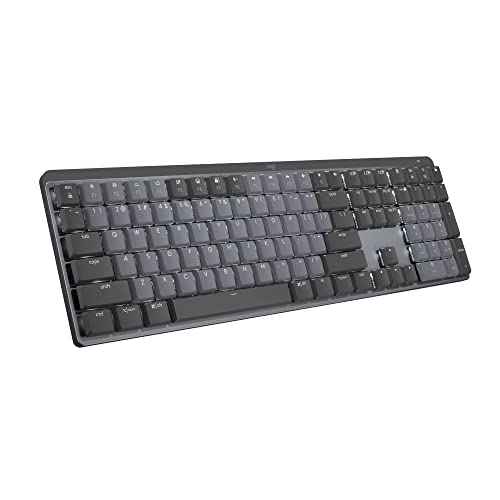
The MX Mechanical exists for the typist who wants one mechanical board across both machines rather than a mechanical board on one and a laptop keyboard on the other. Its connection story matches the default pick's: Bluetooth Low Energy or the included Logi Bolt receiver, up to three devices, and Bolt not compatible with Unifying — so the locked-down-laptop route is the same straightforward receiver pairing as the MX Keys S. One catalogued caveat belongs exactly here: on a FileVault-enabled Mac, Bluetooth may not enter your password at startup, so use the Bolt receiver for that step — a two-computer desk with a Mac in the pair is precisely where that detail surfaces.
Its battery check is the strongest of the rechargeable three: up to 15 days with the smart white backlight on, or up to 10 months with it off. The condition is in the cable: it is for charging only, and the board stays wireless while plugged in — there is no wired mode to fall back on, on either machine, which matters to a reader who assumed plugging in was also a connection. Plan on the wireless link being the link, charged or not.
The board itself is a full-size frame with a numpad, 17.08 by 5.18 inches and 828 grams, built around low-profile Tactile Quiet mechanical switches that are not hot-swappable — the feel is chosen at purchase, for both computers at once. That feel is the reason to buy it, with its honest footnote from reviewer feedback: construction rattle and a hollow-sounding spacebar are noted against this board, so it is the feel answer, not the quiet one — our quiet home office guide reads the same four boards by sound if the room matters more than the switches.
Fit check: buy it when mechanical feel is the thing both machines must share, the Bolt receiver covers the locked-down one, and the FileVault note is handled by keeping that receiver in the Mac's channel plan. Our full review records the switch, rattle and owner feedback behind this section in full.
When none of the four solves your two-computer desk
Start with the limit built into the whole category: keyboard switching changes only where your typing goes. None of these four switches a monitor's input, so a two-computer desk still needs the monitor's own input button, a hub or dock, or a KVM for the display. Those are criteria, not picks — this guide reviews none of them — but a reader who buys a switching keyboard expecting the screen to follow has solved half the desk. Budget the display answer separately, and judge any hub, dock or KVM by whether it switches the monitor your two machines actually share.
The second gap is wired typing: none of the four offers it. The rechargeable boards' USB-C cables charge — the MX Keys S and the Mini work while charging, and the MX Mechanical stays wireless while plugged in — but the cable is never the connection. A desk that requires a wired keyboard, for policy or for a machine that wakes badly over wireless, is outside what any board here does.
The third gap is the locked-down corner the first check points at. If the second machine forbids Bluetooth pairing and has no free USB-A port for a receiver, none of the four solves it as shipped — there is no channel left for the keyboard to arrive on. The Mini sits furthest from that corner, with its receiver a separate purchase; the other three at least put a receiver in the box, on two different standards. Check that one machine's pairing rules and free ports before choosing among the four, because no amount of Easy-Switch convenience routes around a port that is not there.
Two-computer keyboard questions, answered honestly
Can one keyboard switch between two computers?
Yes — that is the one thing all four keyboards reviewed here do the same way. Each pairs with up to three devices and moves between them with dedicated Easy-Switch keys, so a work laptop on one channel and a personal machine on another is the ordinary setup, not a workaround. What switching does not do is move anything else: the keyboard changes where your typing goes, and nothing more. Your monitor, your mouse and your audio each need their own answer, which is why this guide judges the four boards on the checks around the switching — the receiver each one uses, how it is powered, and what the board itself is like to live with on both machines.
Bolt or Unifying — does the receiver standard matter?
It decides whether the keyboard can pair with a locked-down work laptop at all, and the two standards are not interchangeable. The MX Keys S and the MX Mechanical include a Logi Bolt receiver, Logitech's newer standard, and Bolt is not compatible with Unifying receivers. The Ergo K860 includes a Logitech Unifying receiver, the older standard, and not a Bolt one. The MX Keys Mini includes no receiver at all: it is Bluetooth only in the box, works with a Logi Bolt receiver bought separately, and is not compatible with Unifying. So a receiver already in your desk drawer only helps if it matches the board's standard, and a workplace that forbids Bluetooth pairing makes the included-receiver boards the straightforward route.
Which of the four is best if my work laptop forbids Bluetooth pairing?
One of the three boards that includes a receiver: the MX Keys S or the MX Mechanical on Logi Bolt, or the Ergo K860 on Unifying. Each of those can connect through the receiver in its box instead of a Bluetooth pairing the machine may refuse. The MX Keys Mini is the exception to plan around — Bluetooth only as shipped, with a Logi Bolt receiver a separate purchase — so on a locked-down machine it is the one board of the four that may not connect on day one. Which receiver standard a workplace prefers is that workplace's call; what this guide can say is which standard each board actually uses, because the headline switching spec hides it.
How do the four compare on battery when the board is switched all day?
Three are rechargeable over USB-C and one never needs charging at all. The MX Keys S is rated at up to 10 days with its backlight on or up to five months with it off, and it works while charging. The MX Keys Mini carries the same rating — 10 days lit, five months unlit — and also works while charging. The MX Mechanical runs longer between charges, up to 15 days with its backlight on or up to 10 months off, though its cable is for charging only and the board stays wireless while plugged in. The Ergo K860 takes two AAA batteries rated at up to 24 months and has no backlight, so there is nothing to plug in — just a pair of batteries to replace roughly every couple of years. Backlight use is the variable that moves the rechargeable boards' numbers most.
Will switching the keyboard also switch my monitor to the other computer?
No. Keyboard switching changes only where your typing goes — none of the four keyboards reviewed here switches a monitor's input, and none offers wired typing either. A two-computer desk still needs its own answer for the display: the monitor's own input button, a hub or dock, or a KVM switch, none of which this guide reviews or recommends a specific model of. Plan the desk as two separate problems — where typing goes, which a keyboard like these solves cleanly, and where the picture goes, which it does not touch — and a setup that feels half-switched usually turns out to be a display that was never switched at all.
Bottom Line
Run the three checks, then read the four keyboards in order
Ask first whether both machines accept Bluetooth — and if one does not, which receiver standard its world runs — then ask how you want to power a board that is switched all day, and only then ask which board you want under your hands on both machines. For most two-computer desks the answer is the Logitech MX Keys S: Bolt receiver in the box, a backlight that wakes as you switch, and a full-size board that works while it charges. Where wrists choose first and Unifying is the house standard, the Ergo K860 brings the split shape and a two-year battery with nothing to charge. Where the desk is small and both machines pair freely, the MX Keys Mini pulls the mouse in close — with its Bluetooth-only box priced into the decision. And the MX Mechanical is the feel answer on the same Bolt footing, bought with its rattle caveat in view. Working from one machine and choosing more generally? See our keyboard guide for working from home; typing within earshot of others? See our keyboard guide for a quiet home office, or browse all our keyboard reviews.